看清 Wi-Fi 信号的每一次起伏 Watch your Wi-Fi, second by second

在 iOS 上持续记录 Wi-Fi 状态,需要排查时,有常用工具。 Keep a running record of your Wi-Fi on iOS, with the usual tools at hand when you need to troubleshoot.

在 App Store 下载 Download on the App Store

当前网络,一屏看完Your network at a glance

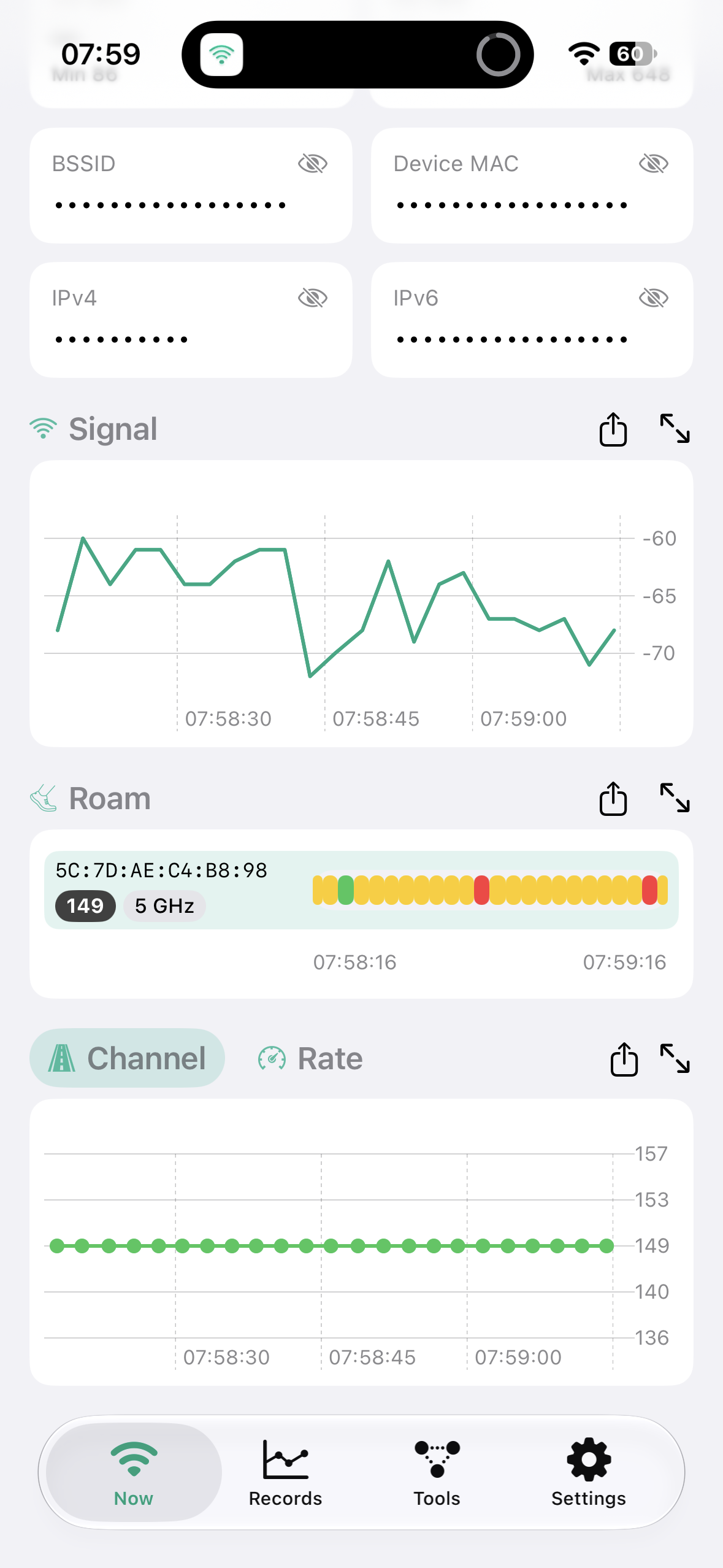
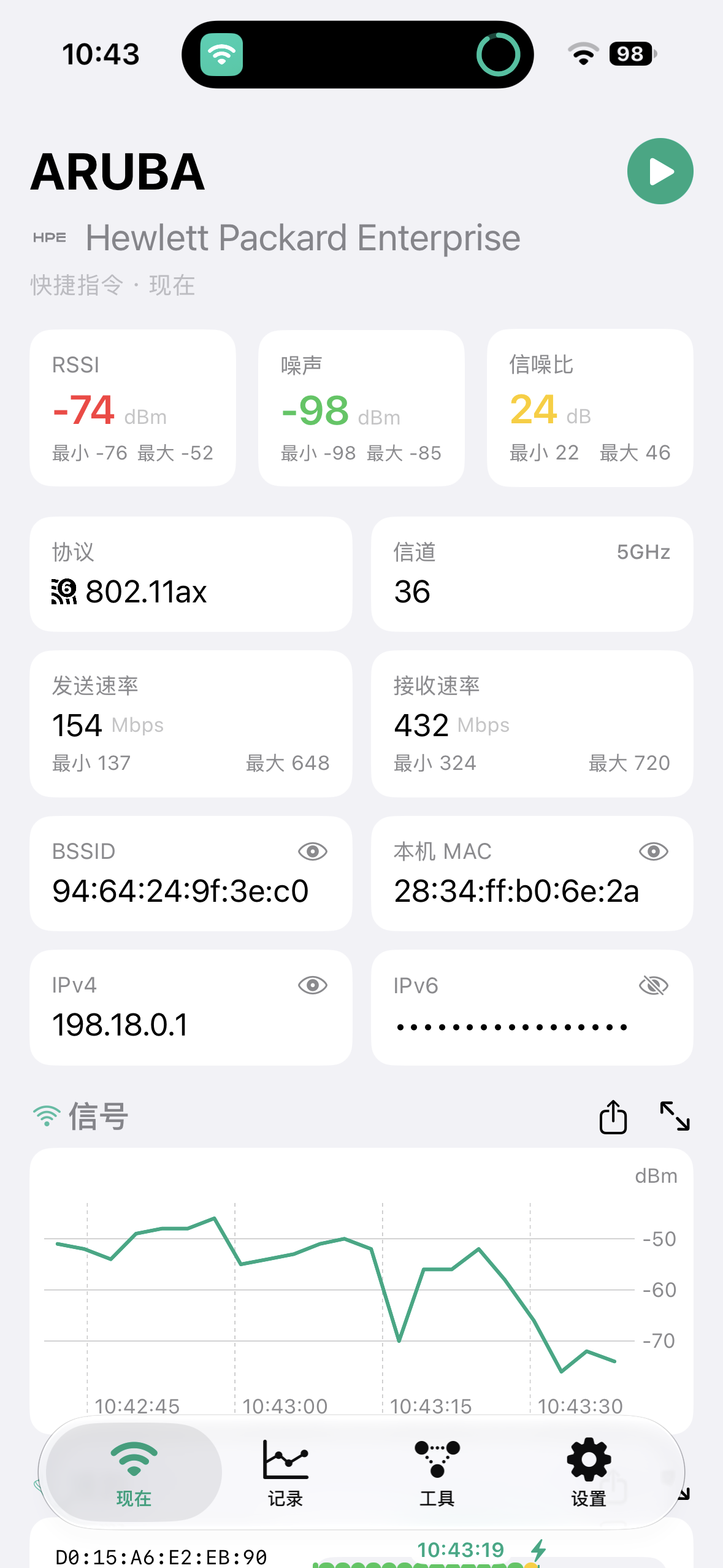
打开就能看到连着哪个 Wi-Fi、路由器是哪家厂商的,以及 RSSI、噪声、信噪比、协议、信道和收发速率。每项数值下面标着这次采集里的最低和最高。 Open the app to see which Wi-Fi you are on, who made the router, and the RSSI, noise, SNR, protocol, channel, and link rates. Each value shows the lowest and highest reading from the current capture.

截图发给别人之前,可以一键遮住 BSSID、本机 MAC 和 IP 地址。 Before you send a screenshot to someone, tap once to hide the BSSID, device MAC, and IP addresses.
信号怎么变,一眼看出来See how the signal changes

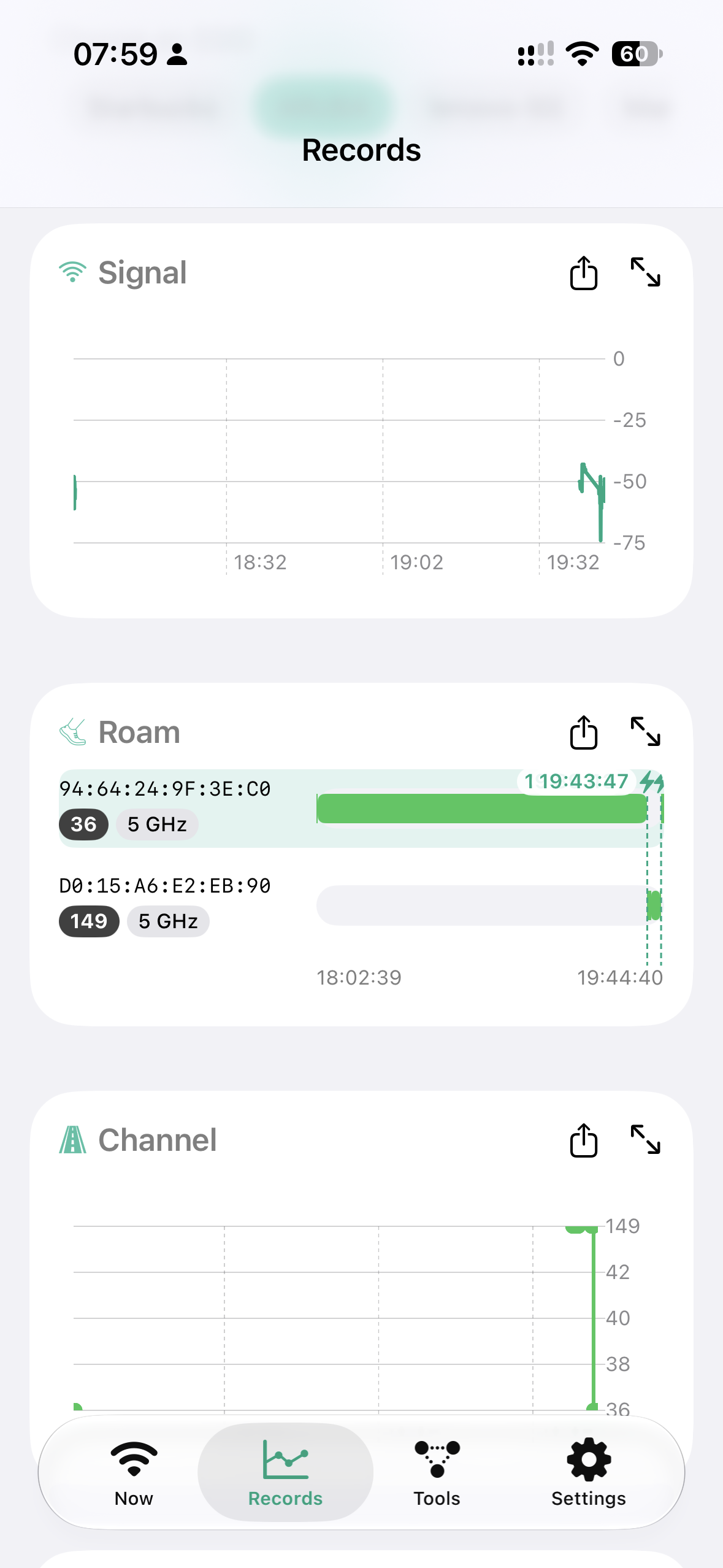
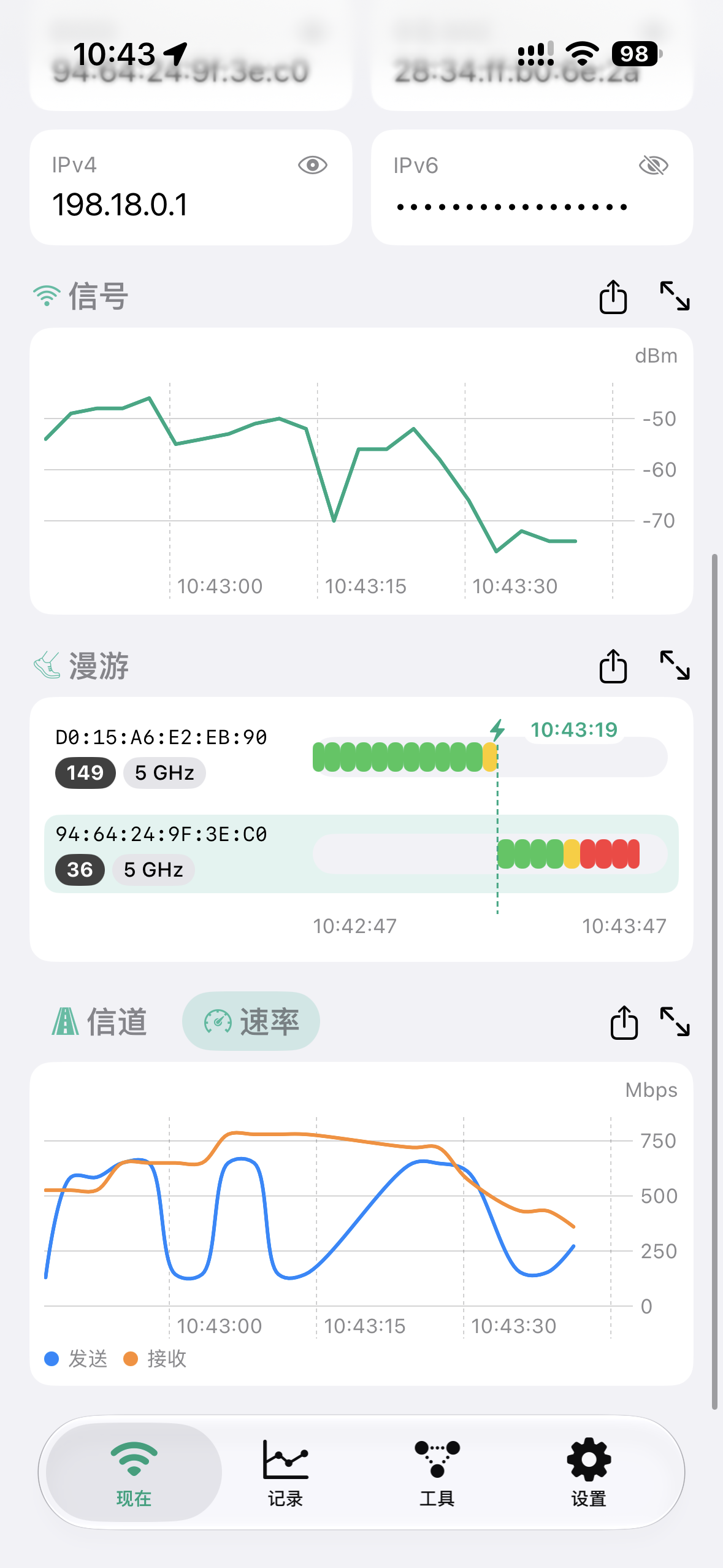
信号曲线画出强弱随时间的变化。漫游图按热点分行,绿、黄、红色块对应信号好坏,换到了哪台 AP、什么时候换的都能看到。信道和速率也有各自的图。 The signal chart plots strength over time. The roaming chart puts each access point on its own row, colored green, yellow, or red by signal quality, so you can see which AP the device moved to and when. Channel and rate have their own charts.

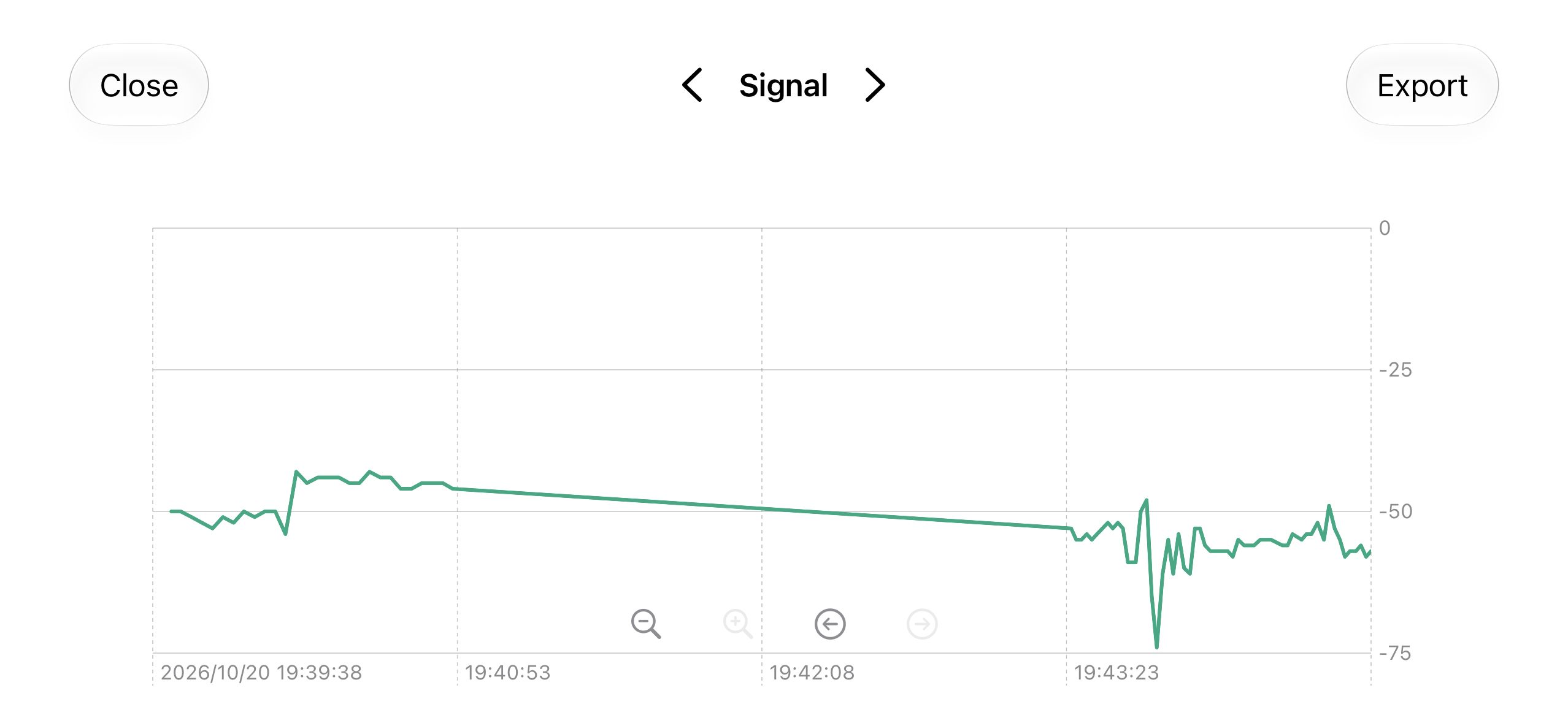
横过来可以全屏看图,放大或缩小时间范围,往前翻看更早的数据。 Turn the device sideways for a full-screen chart. Zoom the time range in or out, and step back to earlier data.

回头查,有据可依Go back to any moment

采集的数据按网络保存。选一个网络,就能回看那段时间的信号、漫游和信道。 Captured data is saved by network. Pick one to review its signal, roaming, and channel for that period.

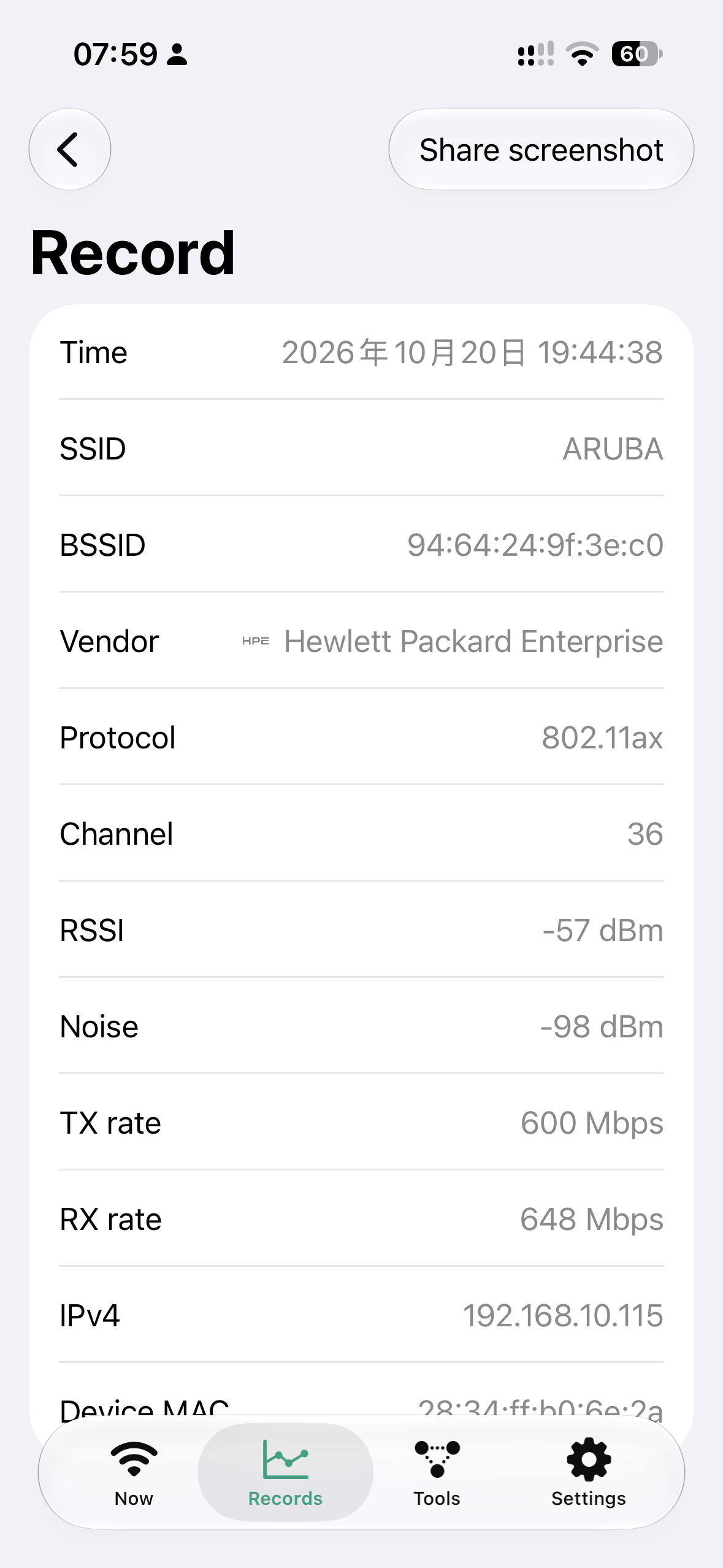
点开任意一个时间点,能看到当时的完整数据:SSID、BSSID、厂商、协议、信道、RSSI、噪声、收发速率和地址,也可以直接截图分享。 Tap any point in time to see everything recorded then: SSID, BSSID, vendor, protocol, channel, RSSI, noise, link rates, and addresses. You can share it as a screenshot.

网络出问题,接着往下查When something is wrong, keep digging

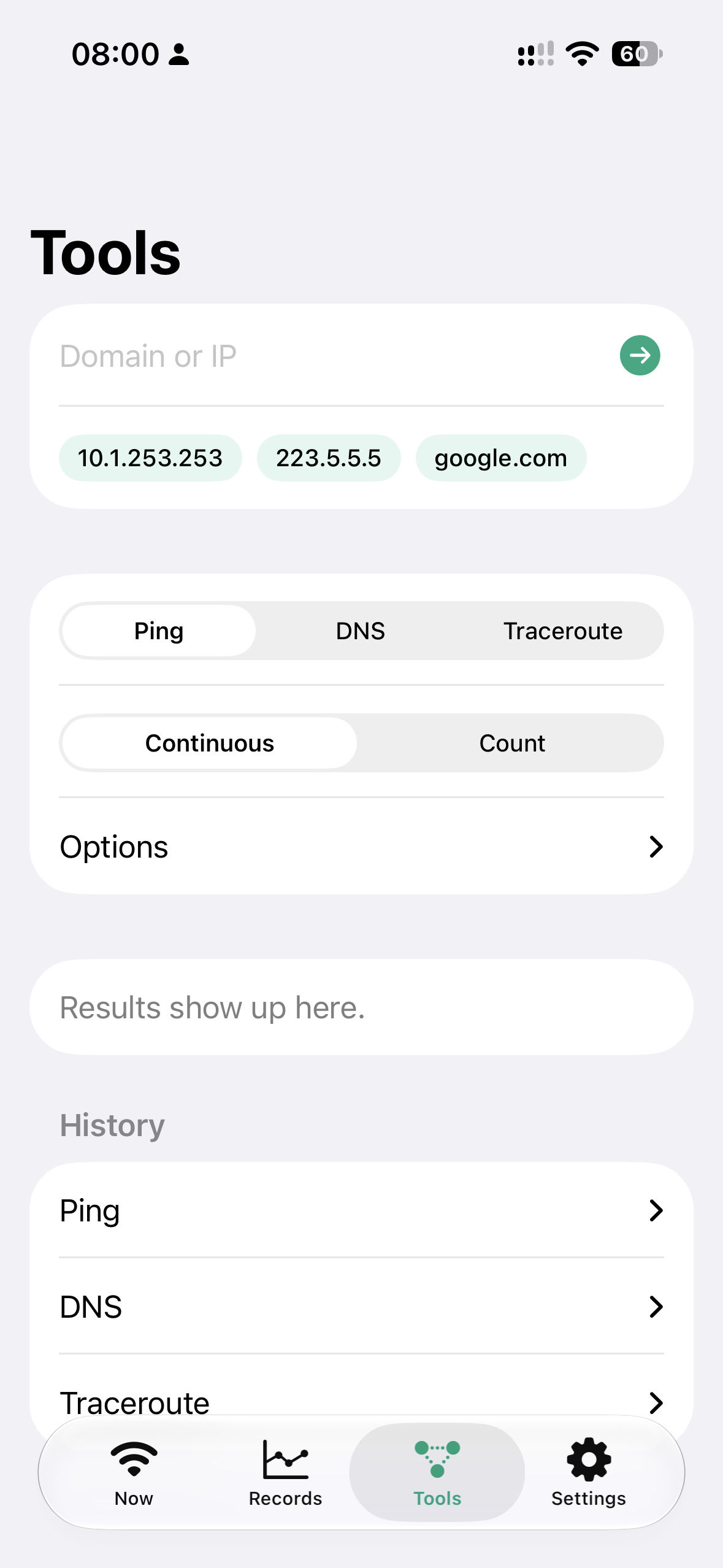
在工具页输入域名或 IP,就能 Ping、查 DNS 或做路由追踪。用过的主机会留在输入框下面,点一下就能再测。 In Tools, type a domain or IP to ping it, look up its DNS records, or trace the route. Recent hosts stay under the field, so you can test them again with one tap.

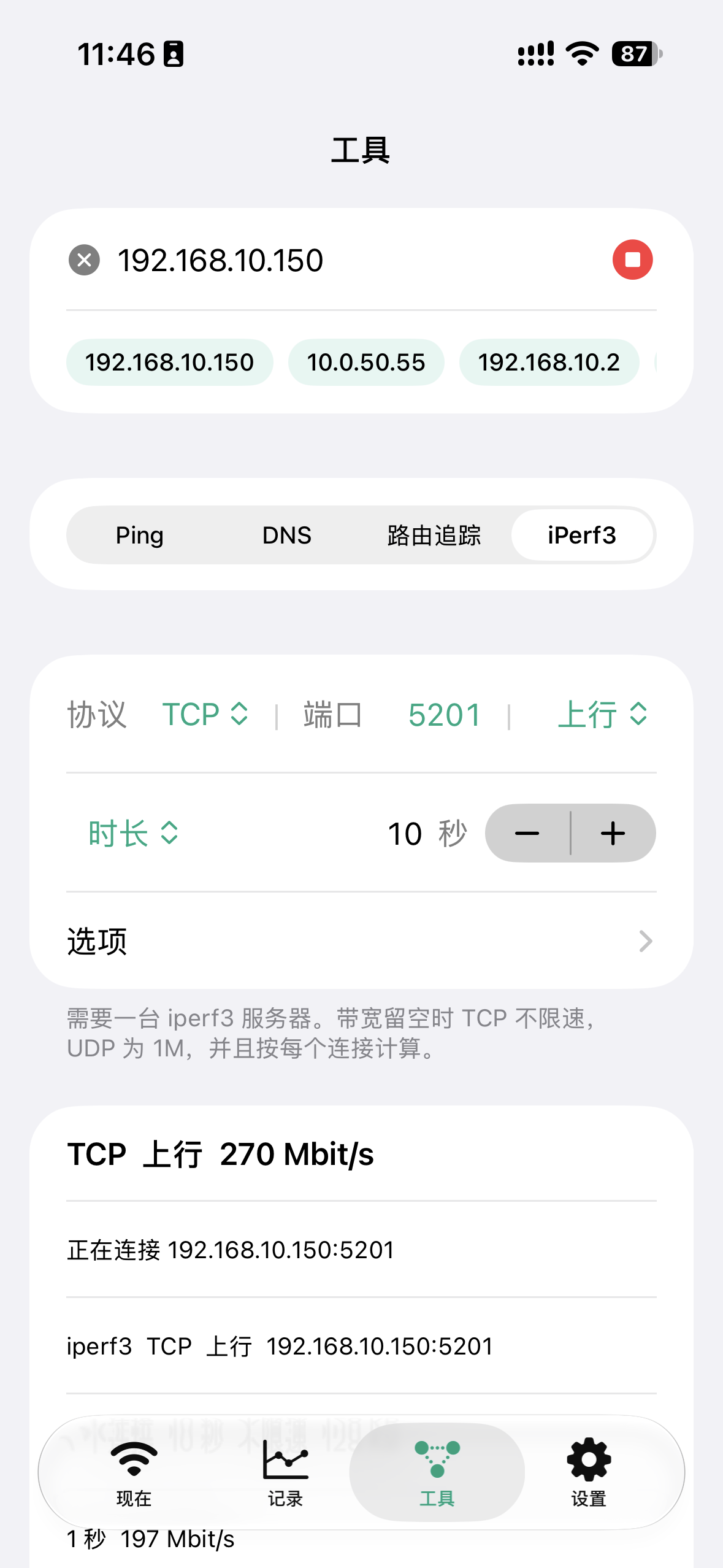
想知道实际能跑多快,可以用 iperf3 连到你自己的 iperf3 服务器,测上行或下行吞吐量。iperf3 属于 Pro 功能。 To find out how fast the link really is, iperf3 connects to your own iperf3 server and measures upload or download throughput. iperf3 is part of Pro.

Pro

Pro 可以一次买断,也可以按月或按年订阅。 Pro is a one-time purchase, or a monthly or yearly subscription.

免费Free Pro
实时信号、图表、漫游Live signal, charts, roaming ✓ ✓
Ping、DNS、路由追踪Ping, DNS, traceroute ✓ ✓
采集间隔Sample interval 固定 2 秒2 seconds 1–60 秒1–60 seconds
采集时长Capture length 固定 2 分钟2 minutes 1–180 分钟,或一直采集1–180 minutes, or no limit
历史记录History 最近 10 条Latest 10 全部All
自定义显示Custom display — ✓
导出 CSVCSV export — ✓
iperf3 测速iperf3 speed test — ✓
其他新增功能Other new features — ✓

开始使用Getting started

iOS 应用不能直接读取 Wi-Fi 信号质量,要借助系统自带的「快捷指令」。第一次打开时做好这三步就行: iOS apps cannot read Wi-Fi signal quality on their own, so Wi-Fi Record uses the built-in Shortcuts app. The first time, do these three things:

  1. 安装快捷指令Install the shortcut 在应用里点「安装快捷指令」,在分享面板里选「快捷指令」并添加。 Tap Install Shortcut in the app, choose Shortcuts in the share sheet, and add it.
  2. 允许访问Allow access 运行一次快捷指令,提示出现时点「允许」。 Run the shortcut once and tap Allow when asked.
  3. 开始采集Start collecting 回到应用点「开始采集」,再点一次就停止。 Back in the app, tap Start collecting. Tap it again to stop.

更多说明见使用帮助。 More details are in Help.

不需要注册账号,记录只保存在你的设备上。详见隐私政策。 No account needed, and your records stay on your device. See the Privacy Policy.